Connecting Business Checking to QuickBooks
Last updated: November 6, 2026
Meow offers two separate QuickBooks Online connections, and they do different jobs. The bank feed brings your transactions into QuickBooks. The QuickBooks integration pushes records from Meow, like bills, invoices, and Treasury activity, into QuickBooks. Most businesses that only bank with Meow need just the bank feed.
Which connection do I need?
You only use Meow for banking and cards: connect the bank feed.
You also use Bill Pay, Invoicing, or Treasury: connect both, so those records land in QuickBooks too.
Bank feed (connect from inside QuickBooks)
The bank feed brings your Business Checking and card transactions into the Banking tab in QuickBooks. You categorize and reconcile them there, like any other bank account.
In Meow, go to Integrations > QuickBooks.
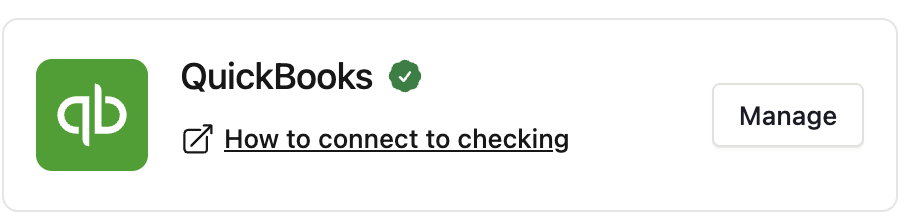
Click How to connect to checking.
Follow the instructions to connect your account to the QuickBooks bank feed.
QuickBooks integration (connect from Meow)
The integration sends records from Meow to QuickBooks, including Bill Pay bills, invoices, and Treasury activity as journal entries. It also lets you map your Meow vendors and accounts to your QuickBooks chart of accounts.
In Meow, go to Integrations > QuickBooks.
Click Manage.
Sign in to QuickBooks and follow the prompts to connect and map your accounts.
For Treasury, see Connecting U.S. Treasuries to QuickBooks. If you sign in to Meow with Google, see How to Connect QuickBooks When You Sign In with Google.
Tip: avoid duplicates when you use both
When a bill or invoice payment shows up in the bank feed, match it to the record the integration already created. Don't add it as a new transaction, or you'll end up with duplicates.
Need help? Contact us at support@meow.com or through chat in your dashboard.